

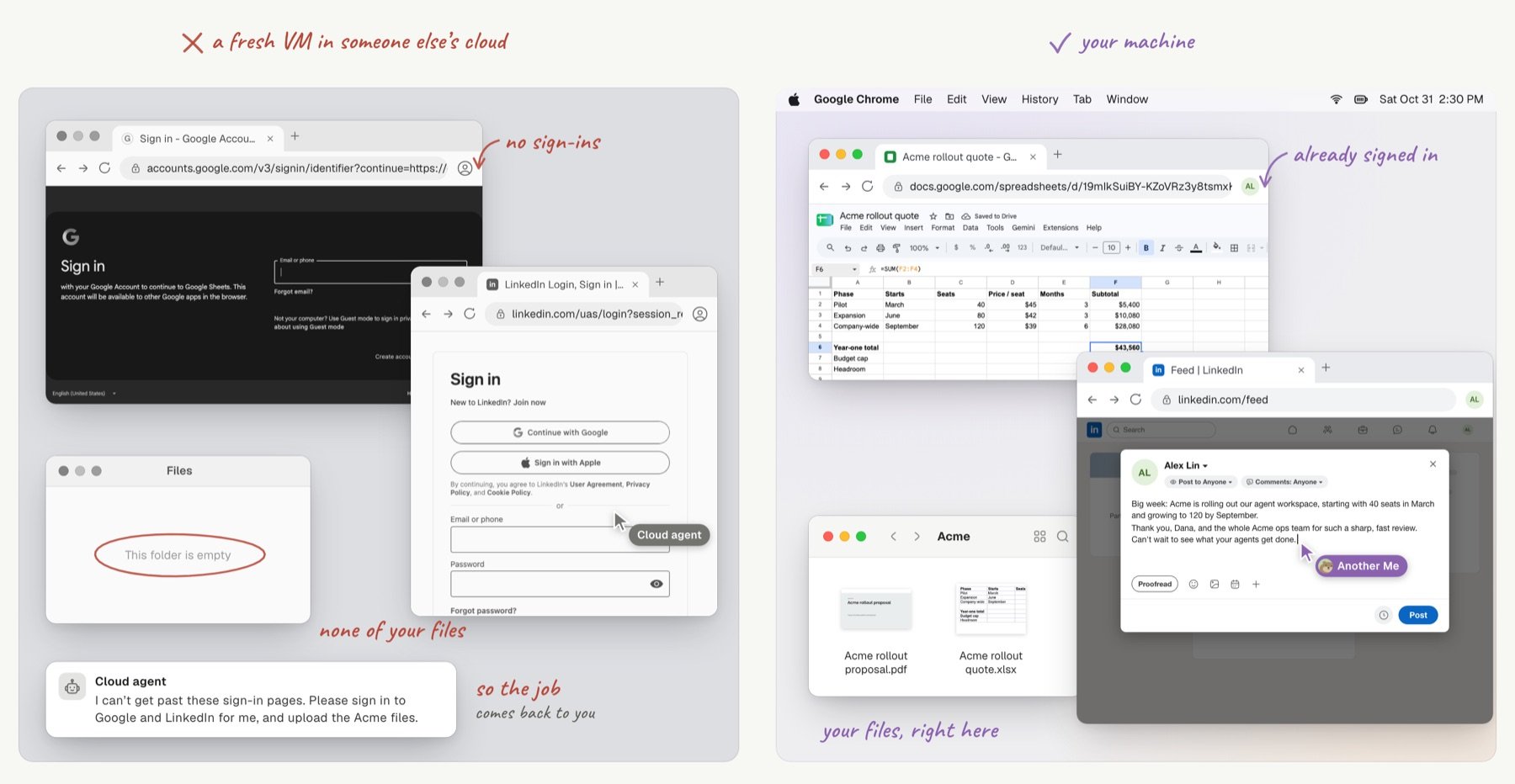
On your own computer, the agent is already signed in.
Check what each system supports
macOS and Windows support every capability, and Linux supports less.
On Linux, desktop control uses the X Window System (X11). The computer needs
python3-pyatspi, xdotool, ImageMagick, xclip, and a user systemd manager. Under Wayland or with a missing dependency, the agent gets a status that explains why. Browser and file tools still work.
Connect your Chrome once
Connect your everyday Chrome once, and agents work in sites such as Google Sheets, Google Slides, or LinkedIn as you. They use the sign-ins you already have. In a Room chat, select Connect my browser. The connection uses the token of the official Playwright Extension in your Chrome. The token is stored only on your computer, readable only by your user account. It never enters the chat or the model. When Chrome is your default browser and it is not connected, browser calls wait for you to connect it. When your default browser is not Chrome, agents use a separate agent profile instead.Share the screen with agents
Agents take turns on your desktop. Desktop and browser actions share one input slot, so two agents never fight over the screen. A second task waits until the screen is free. Linger logs each input before it runs. When the result of an input is unknown, further input stays blocked, and that input is never sent again. This prevents a double click or a duplicate form submission. On a Mac, you can take the screen back at any time. Switch to another app yourself, and the agent stops typing instead of pulling the window back.Handle system permissions and locked screens
Linger does not request system rights on its own. On a Mac, the agent only reads which system permissions exist. macOS asks you for a permission only when you select Request on a permission card. On Windows, the agent must run in your signed-in desktop session. On a locked screen, the agent gets a clear status and sends no input.Understand what agents can reach
An agent on your computer acts with your authority. It reaches your files, signed-in apps, and shell, as your user account can. Connect only computers whose owner accepts that. Every desktop, browser, and shell action passes the Guardrail first. The Guardrail runs rule-based checks, then an optional model review. The server turns the review on withTEAMHUB_PERMISSION_REVIEW, which is false by default. Agents on the Pi Runtime run without review. See Approvals and Computer permissions.
Keep learning
Architecture
See how the input slot and the action log work.
Connected apps
Let agents use Gmail, Slack, and other apps through the teamhub CLI.
Computer permissions
See what an agent can reach on your computer.
Approvals
See which actions wait for your decision.