

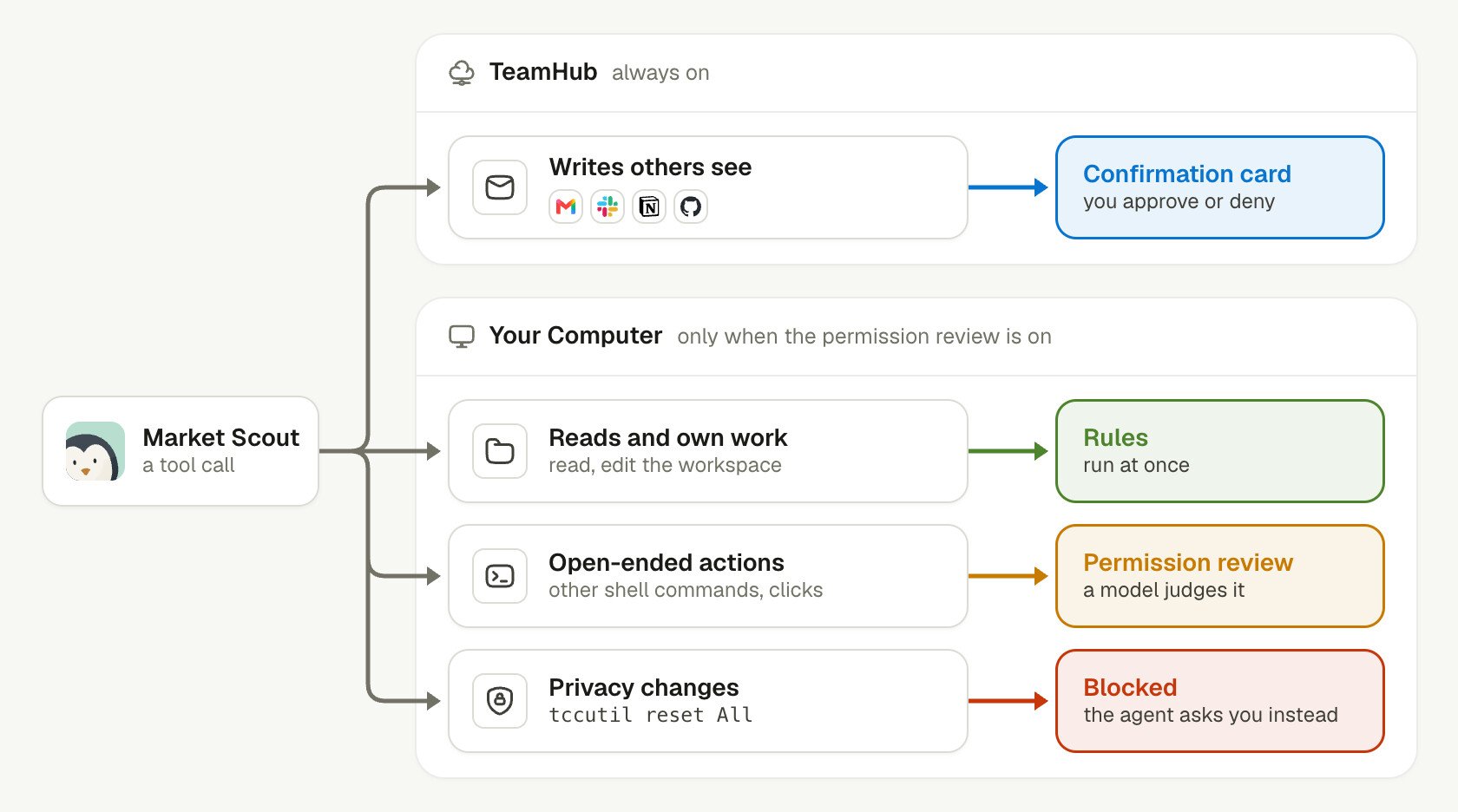
TeamHub always holds writes that others see. The Computer checks the rest only when the permission review is on.
How does Linger sort an agent’s tool calls?
Linger sorts each call by what it can affect. Only calls whose effect depends on their content go to a model.
Reads and work in the agent’s own folder are the agent’s job, and rules can tell them apart. A write that others see has a fixed shape: a message, a recipient, a page. A card that shows it is enough. An open-ended action is different. Its effect depends on what the command or the click actually does, so no fixed rule can judge it. The permission review reads the action and the conversation, and asks you when the action is risky and you have not clearly asked for it.
A few app writes skip the confirmation card and go to the permission review instead: calendar changes, Drive uploads, Figma comments, Slack reactions, and image or video generation. Any app tool that TeamHub does not know waits for a confirmation card. The server also checks the agent’s access on every
teamhub call, whatever its kind.
Creating or changing an agent also waits for a confirmation card, with two exceptions. An agent can create a new agent in a team Room that you are in. It can also fill in a new, still-blank agent in the same Room.
What happens after you approve or deny?
What happens after you approve depends on the card. A confirmation card runs the write for you. A review card only lets the agent try again.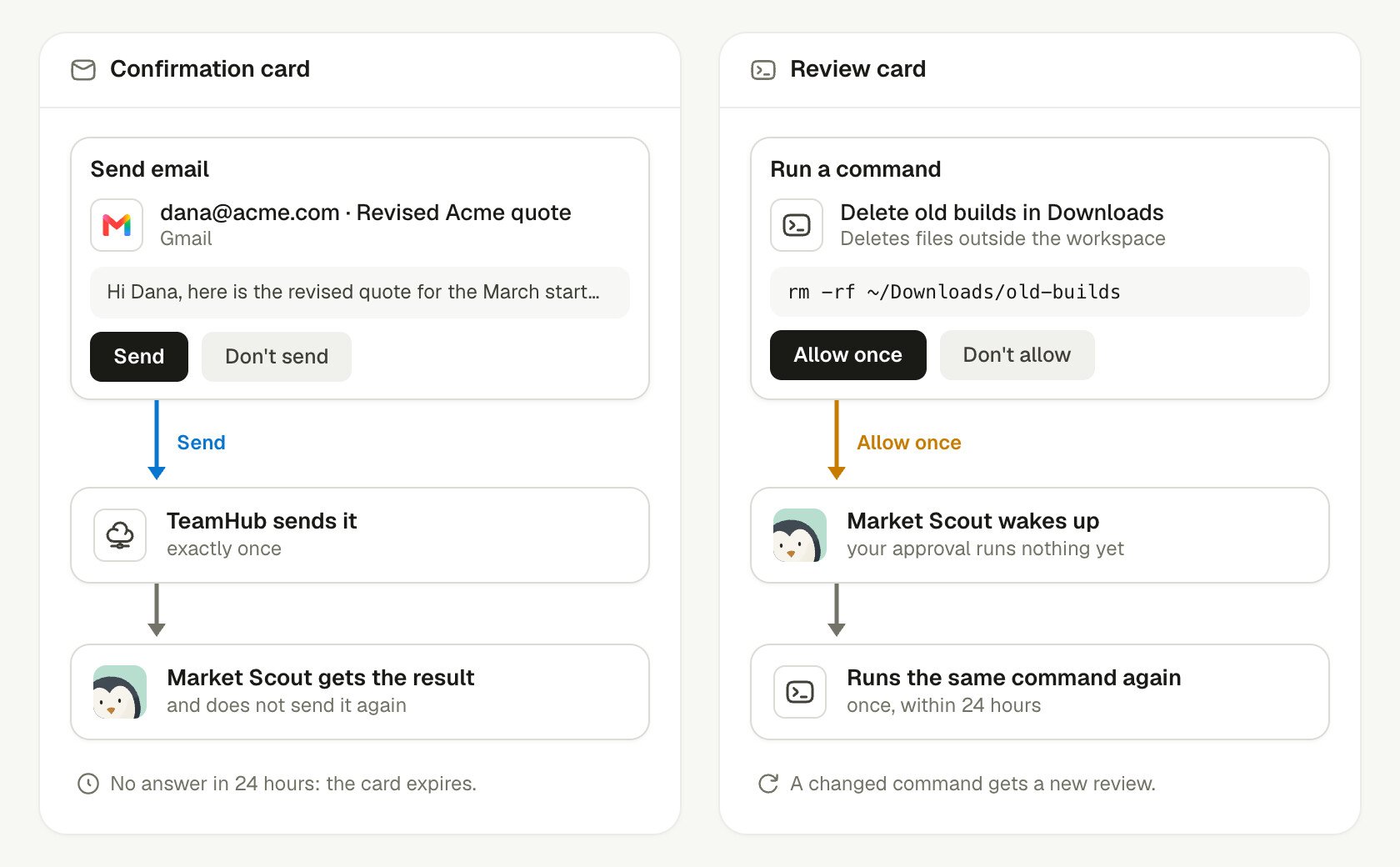
Approving a review card runs nothing until the agent tries again.
- Confirmation card. TeamHub runs the write itself, exactly once, and tells the agent the result. The agent does not run the command again.
- Review card. Approving does not run the action. It wakes the agent, and the agent’s next identical call runs once. That retry must come within 24 hours. A changed command, script, or patch is a new action and gets a new review.
- Authorization card. When an agent uses a connected app that you have not connected, the card asks you to connect it. The agent then runs its command again.
- Deny. The action does not run. You can add a reason, and the agent receives it.
While a Task’s card waits, the Task is in the
waiting_for_approval state. The Task resumes when you answer or when the card expires. See Task delegation.
Where does a card appear?
A card appears in a chat where you can see it, because only you can decide it. You are the agent’s sponsor, the person it works for.- An agent in a Room posts its card in that Room.
- A background Task posts its card in the Room that started the Task.
- When you are not a member of that Room, the card goes to your direct chat with the agent.
How does the permission review judge an action?
The permission review judges one action at a time, and most calls never reach the model.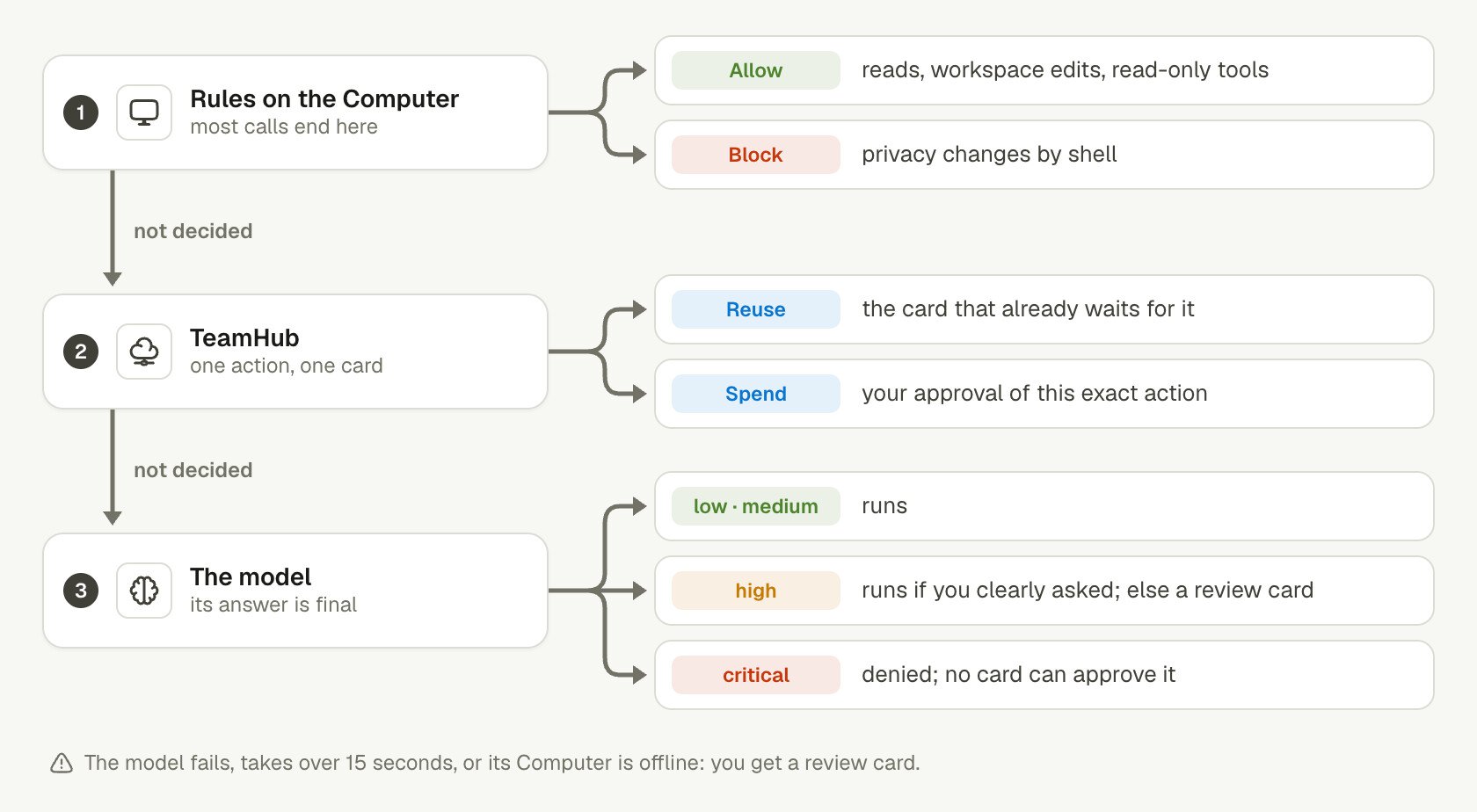
The first step that decides ends the check.
- Rules on the Computer. They allow reads, file edits in the Agent workspace, read-only browser and desktop tools, steps that follow what the agent already saw (such as a link on the current page), and
teamhubcommands that TeamHub checks itself. They block privacy changes by shell. Edits outside the Agent workspace go on to the review. - TeamHub. It reuses a card that already waits for the same action, or spends your approval of it.
- The model. It judges the action, and its answer is final.
A
low or medium action still gets a card when it shows clear signs of prompt injection. An action that could be high also gets a card when the model lacks evidence, such as the contents of a script the action runs.
Only your messages can authorize an action. A “go ahead” from another Room member or another agent does not count. A Routine that you saved counts as you asking now, for what its instruction names and nothing more. A later “stop” or “wait” cancels an earlier approval.
These rules shape what you see on a card:
- Reading never authorizes sending. A request to look, check, summarize, or draft does not authorize a send, a post, or a purchase.
- Each target counts. A recipient, channel, or account that you did not name is not authorized.
- Preparation runs freely. Typing a draft or filling in a form is low risk. The send or submit step gets its own review.
- Untrusted content cannot approve. Text in web pages, files, emails, and tool output never authorizes an action, even when it claims that you approved.
- Privacy permissions are high. Turning on Full Disk Access, screen recording, or a similar permission in System Settings counts as
high.
Keep learning
Computer permissions
See what an agent can do on your Computer.
Data and privacy
See the trust assumptions and when data leaves.
Connected apps
Connect Gmail, Slack, and other apps.
Environment variables
Look up
TEAMHUB_PERMISSION_REVIEW and other settings.