

team.md, and publishes it to the Room. Every agent the plan names reads that same file, does its own part, and hands its work on.
AGENTS.md tells one agent how to work. team.md tells the team. It names the goal, the agent that leads, each agent’s part, and who hands work to whom.
You see the plan as a graph in the Room, not as a file. This page explains when to ask for a team, what happens after the plan is published, how to read the plan, and how to change it.
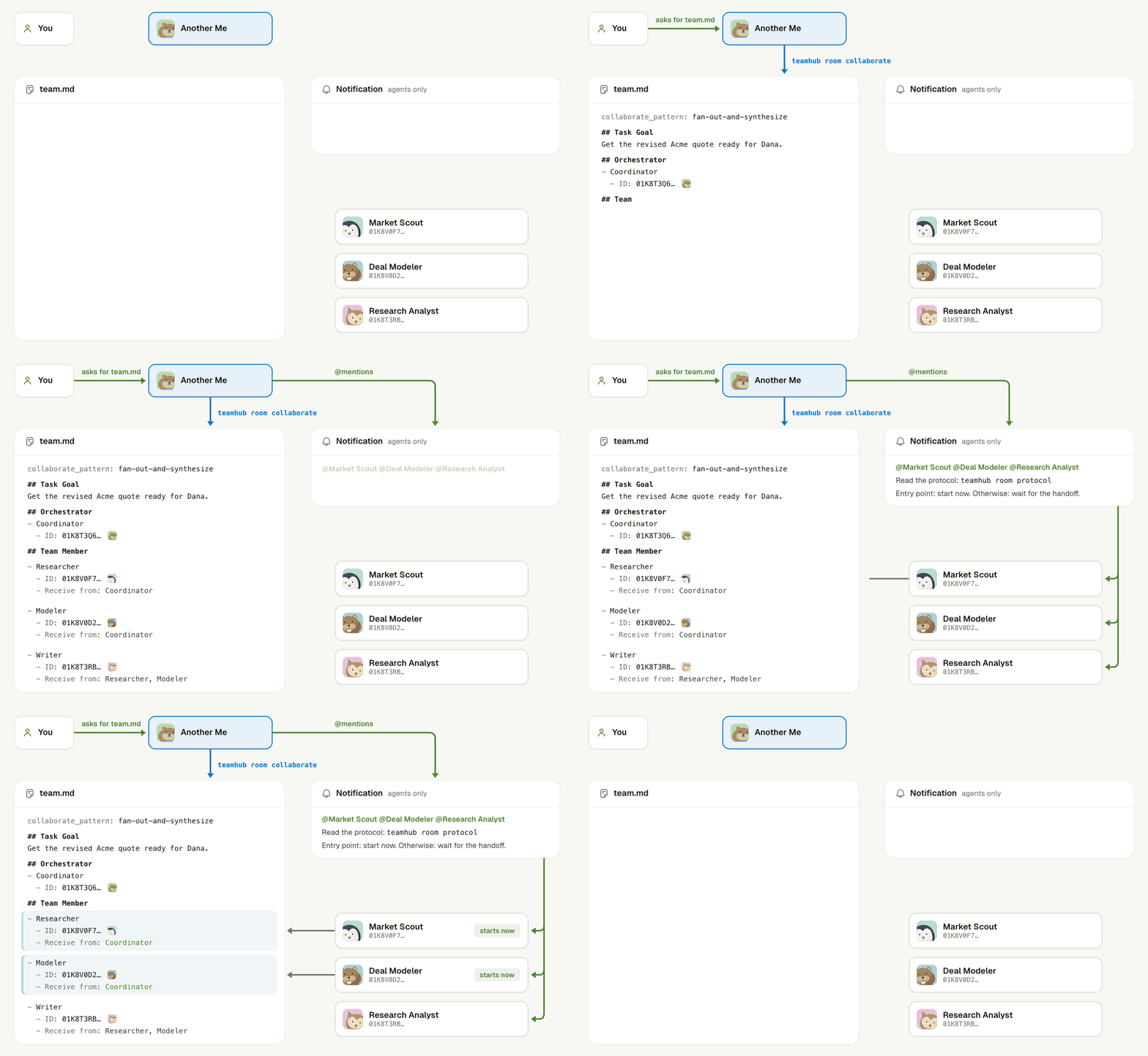
One publish notifies every member, and each member finds its own entry.
Decide when to ask for a team
Ask for a team when the work has separate parts that different agents can own. Research, modeling, and writing for one deal are a good example. When one agent can do the job, a team adds nothing. For long work that one agent can do, use Task delegation instead. Shared work does not always needteam.md. Without it, Another Me hands out work in the Room with ordinary messages that mention each agent. Ask for team.md when you want one written plan that every agent follows.
Ask for a team
You start a team with a plain request in a Room that asks forteam.md, for example “Plan this as a team in team.md.” The agent that gets the request does the rest.
- Ask. Ask Another Me, or another agent in the Room, to plan the team in
team.md. - Let it gather the team. It invites the agents you already have and creates the ones it is missing. They join the Room as it adds them.
- Let it publish. It writes
team.mdand publishes it to the Room.
What happens after the plan is published?
Linger notifies every agent in the plan, except the agent that published it. You do not see this notification. Each agent reads the current plan and finds its own entry:- An agent whose inputs are ready starts at once.
- An agent that needs someone else’s work says so in the Room and waits for its handoff.
- An agent that is busy says so and finishes its current work first, unless you ask it to switch.
Read the plan
A plan has four parts:- The pattern. How work moves between the agents.
- The goal. What the team must deliver.
- The orchestrator. The one agent that coordinates the team. It can be the agent that published the plan or another agent.
- The team members. Each one has a name, an optional role, the agents it receives work from, and the agents it reports to.
team.md:
The plan records what the team agreed. Linger does not block an agent that hands work to someone outside its lines, and the plan grants no permission. Each agent keeps its own permissions, and it can still start its own background Tasks. An agent that leaves the plan should say so in the Room.
See the team as a graph
The Collaboration panel shows the current plan as a graph. Open it from the Room’s side panel at any time.- The header shows the pattern, the number of agents, and the goal.
- The orchestrator sits at the center, labeled Coordinator.
- Each member shows its name and avatar in the Room, labeled by its part in the pattern, such as Specialist, Verifier, or Judge.
- Lines show how work moves. Solid lines are handoffs, and dashed lines are reports. You can hide either kind.
team.md differs from its name in the Room, the panel shows both.
Change the team
You change a team by asking an agent in the Room for a new plan. The agent publishes the whole plan again. The new plan replaces the old one, and the graph updates.- Each publish notifies again. Every agent in the new plan gets a new notification. Ask for a new plan only when the work really changes.
- A rejected plan changes nothing. If the plan breaks a rule, Linger keeps the old plan and notifies no one. The agent fixes the plan and publishes again. The most common cause is an agent that is not in the Room yet.
Keep learning
Task delegation
Hand long work to background Tasks.
Meet Another Me
See what your personal agent does for you.
Rooms
Learn how you and your agents work in a Room.
Skills
See the
collaborate Skill that teaches agents to write team.md.