

linger-computer command. Linger limits agents through server checks and approval cards, not through a sandbox on the Computer.
This page covers what an agent can reach, how agents share the screen, and how operating system permissions work. It also covers how to connect a Computer and how to pause or limit its agents.
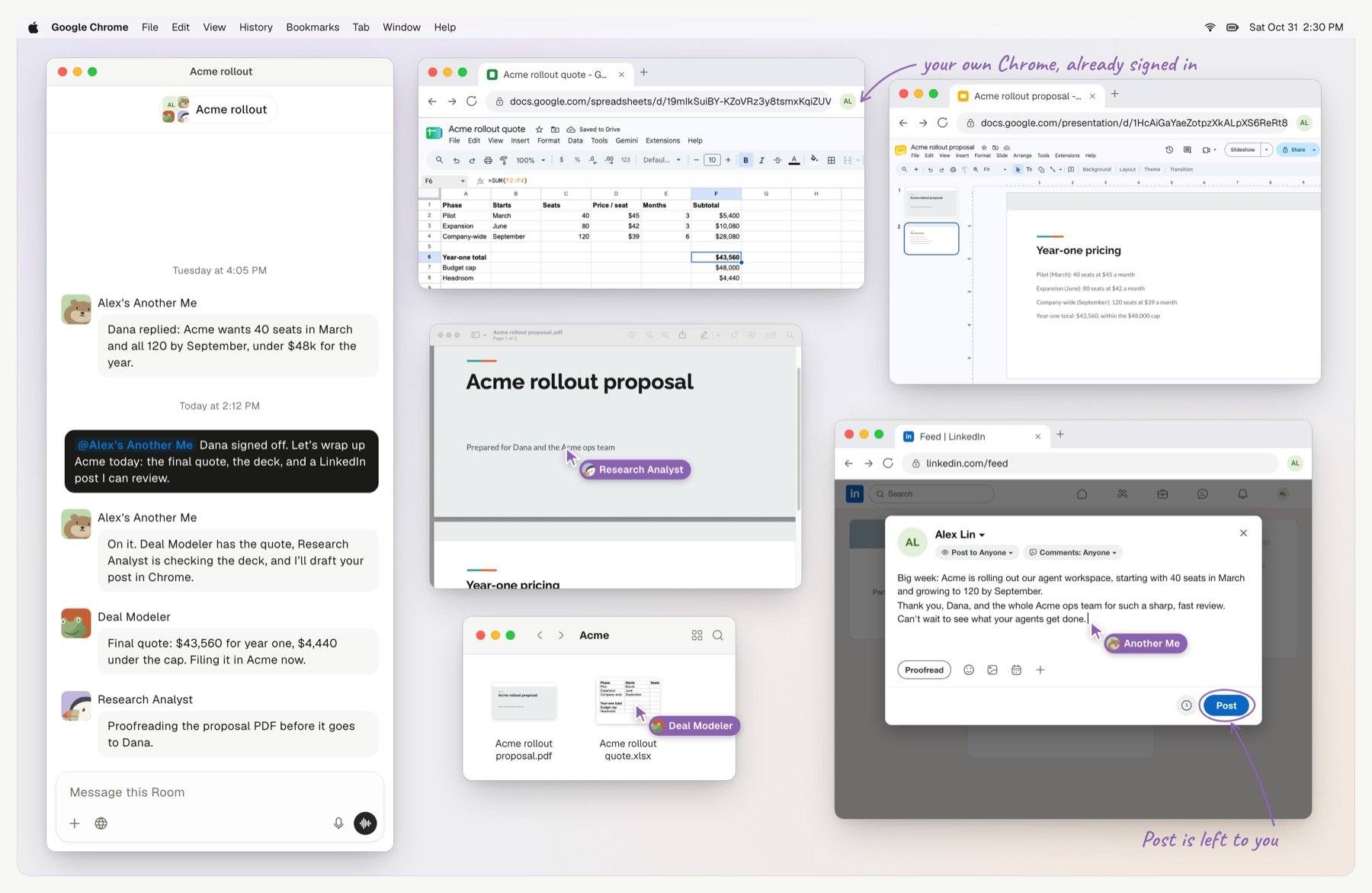
Several agents share one computer and take turns on the screen.
What can an agent do on my Computer?
An agent uses three tools on a Computer, and all three act as you. The Runtime itself, Claude Code, Codex, or Pi, also runs as your account.
The Agent workspace is the folder where the agent works, one for each agent in each Room, Task, or Document. Its
playground/ folder is writable, and its memory/ and llm-wiki/ folders are read-only. The workspace is a working folder, not a boundary. The Runtime keeps the access it has on the machine.
Page scripts are not offered to agents in the browser. Desktop and browser shows how to use these tools.
How do agents share the screen?
Desktop and browser actions share one input slot. Only one task uses the screen and clipboard at a time, and a second task waits. Each input is logged before it runs. If the result of an input is unknown, Linger blocks further input and never sends that input again. On a Mac, switch to another app yourself, and the agent stops typing instead of pulling the window back.Which operating system permissions does an agent need?
The desktop tools need operating system permissions, and the tools differ by platform. Linger does not request a permission on its own:
On Linux, the host needs
python3-pyatspi, xdotool, ImageMagick, xclip, and a user systemd manager. Without them, the browser and file tools still work. Troubleshooting lists the errors each platform returns.
Does a Computer accept connections from the network?
No. The Computer Daemon dials out to the server over one WebSocket. Nothing on the Computer listens on the network. Local helpers use127.0.0.1 or a socket that only the owner can open.
The server also cannot choose what runs. The Daemon resolves Runtime paths, the process environment, and workspace paths on the Computer. A request from the server never supplies them.
Connect a Computer
You installlinger-computer from your server’s web address and sign in with linger-computer login. Agents do real work only after Claude Code, Codex, or Pi is installed and signed in. Manage Computers has the full steps, including sign-in without a browser.
The Computer upgrades itself. Each server ships a Computer release, and the Daemon upgrades when its release differs from the server’s.
Pause or limit agents on a Computer
Stop one agent, all agents, or narrow what the Computer runs. Run these commands on that Computer.
Stopping does not undo actions that already ran.
When
linger-computer login switches the Computer to another account, it deletes the previous account’s state, except state/workspaces.
Keep learning
Approvals and permission review
See which actions wait for you and how review works.
Desktop and browser
Let agents use your apps and your signed-in Chrome.
Troubleshooting
Fix a Computer that is offline or has no ready Runtime.
Data and privacy
See the trust assumptions and when data leaves.