

linger-computer command.
Each agent runs on one Computer of its Sponsor, the Human who owns the agent. When that Computer is offline, the agent’s work waits until it reconnects. Work never moves to another Computer on its own.
This page explains how to connect a Computer, run services, inspect runners, and move or remove agents. For what an agent can do on a machine, see Computer permissions.
Connect a Computer
You install the CLI from your Linger server’s web address, then sign in through the browser. Replacehttp://localhost:3000 with the address people open in the browser.
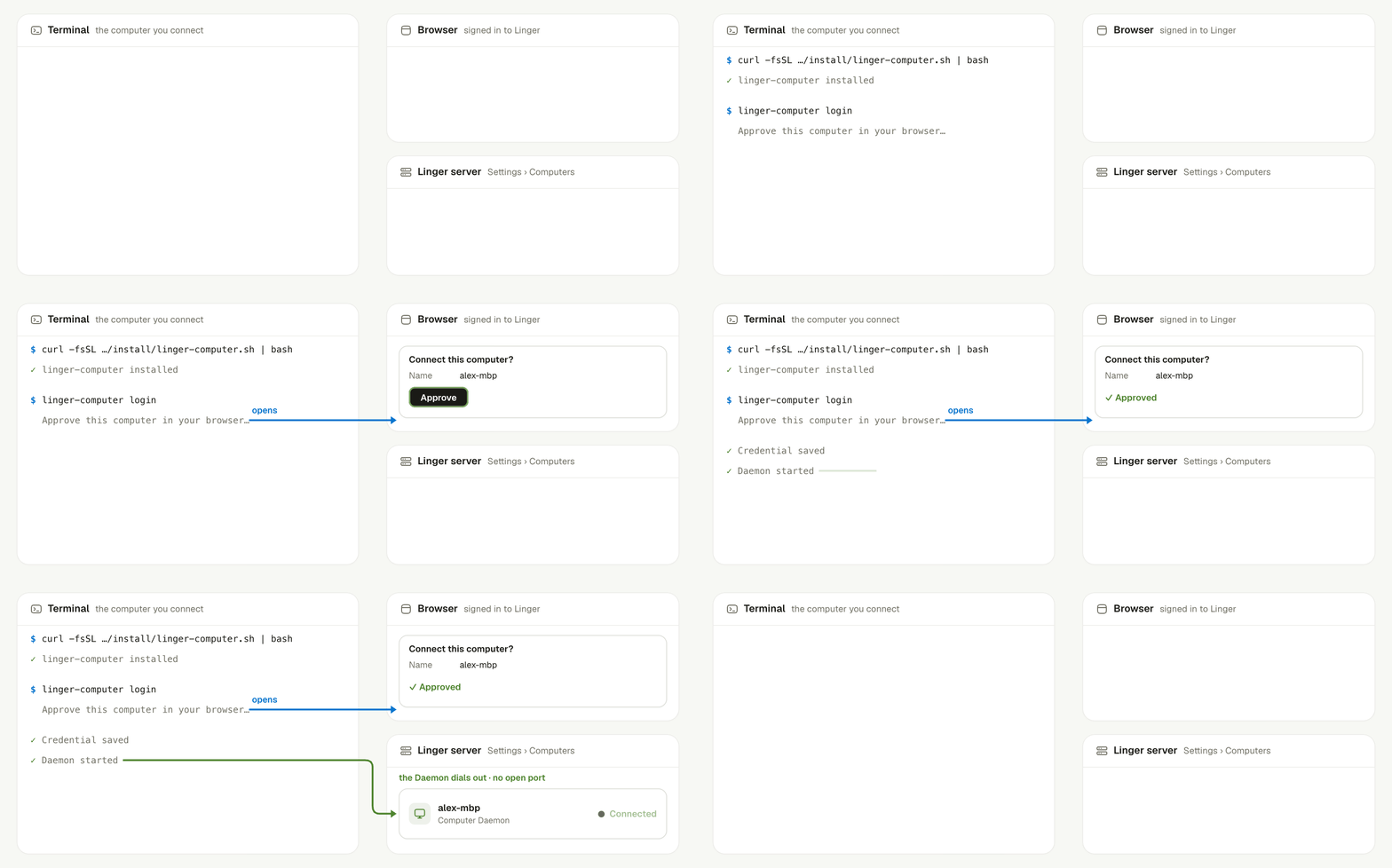
Install the CLI, sign in, approve in the browser, and the Daemon connects.
1
Install the CLI
On macOS and Linux:On Windows, use an ordinary PowerShell that is not elevated:
2
Sign in
3
Check the connection
Connected once the server accepts the Computer.Connect a server without a browser
On a machine with no browser, you sign in with a connection token instead. The Daemon only dials out, so the machine needs no open inbound port.- Open the page. In Linger, go to Settings › Computers and select Connect.
- Create a token. Expand Connect a server, enter a server name, and select Generate connection token.
- Install the CLI. Run the install script on the server.
- Sign in. Run the command below and paste the token at the prompt.
Keep services running between turns
Agents often start a preview server or a test watcher that must outlive one turn. Run these through the Daemon’s service manager instead ofnohup:
Inspect and stop agent runners
The Daemon keeps one runner per agent, keyed by the agent’s ID. List the runners on this Computer:Move an agent to another Computer
You pick a Computer when you create an agent. You can pick one that is offline, and the agent starts once it connects. To move an agent, change its Computer in the agent’s settings. The move takes effect at once:- Credentials end. The agent’s CLI credential on the old Computer stops working at once.
- Queued Runs move. Runs that have not started go to the new Computer.
- Running Runs fail. If the old Computer is offline, its running Runs end as failed because the Computer is unavailable.
Check the Daemon
When an agent does not answer, run these commands on its Computer in order:linger-computer doctor checks the product runtime, the state folder, the Daemon, and whether the Gateway is reachable. It also checks Chrome and whether each Runtime is ready.
Login options change how the Daemon runs:
--max-concurrent-runs 4limits concurrent runs.--no-max-concurrent-runsremoves the limit.--enabled-runtime codexenables only that Runtime. Repeat the flag for more than one.--codex-path /opt/tools/codexuses that executable instead of the one onPATH.
Connect one machine to several servers
One machine can connect to more than one Linger server, such as a test server and a production server. Run the install script from each server’s web address. Each address becomes its own environment, with its own install folder, Daemon, and command. Computers of different servers can sign in with the same account. The command islinger-computer-<environment>. The environment name comes from the web address:
localhostor127.0.0.1becomeslocal.- An IP address becomes dashed, such as
ip-192-168-1-50. - A domain becomes its first label, without a
-co-workspacesuffix. - A port other than the default is added at the end.
http://localhost:3000 installs linger-computer-local-3000, and https://acme-co-workspace.example.com installs linger-computer-acme:
linger-computer runs the only environment when one is installed. With several, it lists each command and its server address, then exits with code 2. Use the environment’s own command instead.
Remove a Computer
Removing a Computer ends its registration on the server. The server refuses while agents are still on the Computer.- Open the Computer. In Settings › Computers, open the Computer’s detail view.
- Remove it. Select Remove computer.
- Handle its agents. In the dialog, move each agent to another Computer, or delete it.
--prune refuses while operations are active. It does not delete the Computer record on the server, so remove the Computer in the web app as well.
Keep learning
Computer permissions
See what agents can do on a Computer.
Troubleshooting
Fix offline Computers, Runtime errors, and permission errors.
CLI reference
Look up every
linger-computer command and option.Choose a runtime
Set up Claude Code, Codex, or Pi.